How to Connect Shopify to Lingxing OMS
Connecting your Shopify store to Lingxing OMS allows the system to receive store and order data after authorization. This guide explains the complete connection process, including the required Shopify URL, inventory-location settings, app authorization, product pairing, and order synchronization.
Important: Complete product pairing after authorization. Authorization alone does not establish the SKU relationship required for order processing.
Before You Begin
Prepare the following information before starting:
- Administrator access to the Shopify store you want to connect
- Access to your Lingxing OMS account
- The store’s permanent
.myshopify.comURL - The Shopify Location ID used for inventory synchronization
- Matching Shopify and Lingxing OMS SKU information
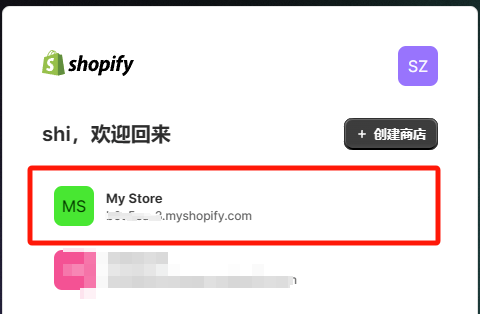
Step 1: Find the Permanent Shopify Store URL
Use the store’s permanent Shopify URL, not a custom storefront domain. The required format is:
your-store-name.myshopify.com
You can locate this address in Shopify under Settings → Domains. Copy the permanent .myshopify.com domain exactly.
Step 2: Open Platform Authorization in Lingxing OMS
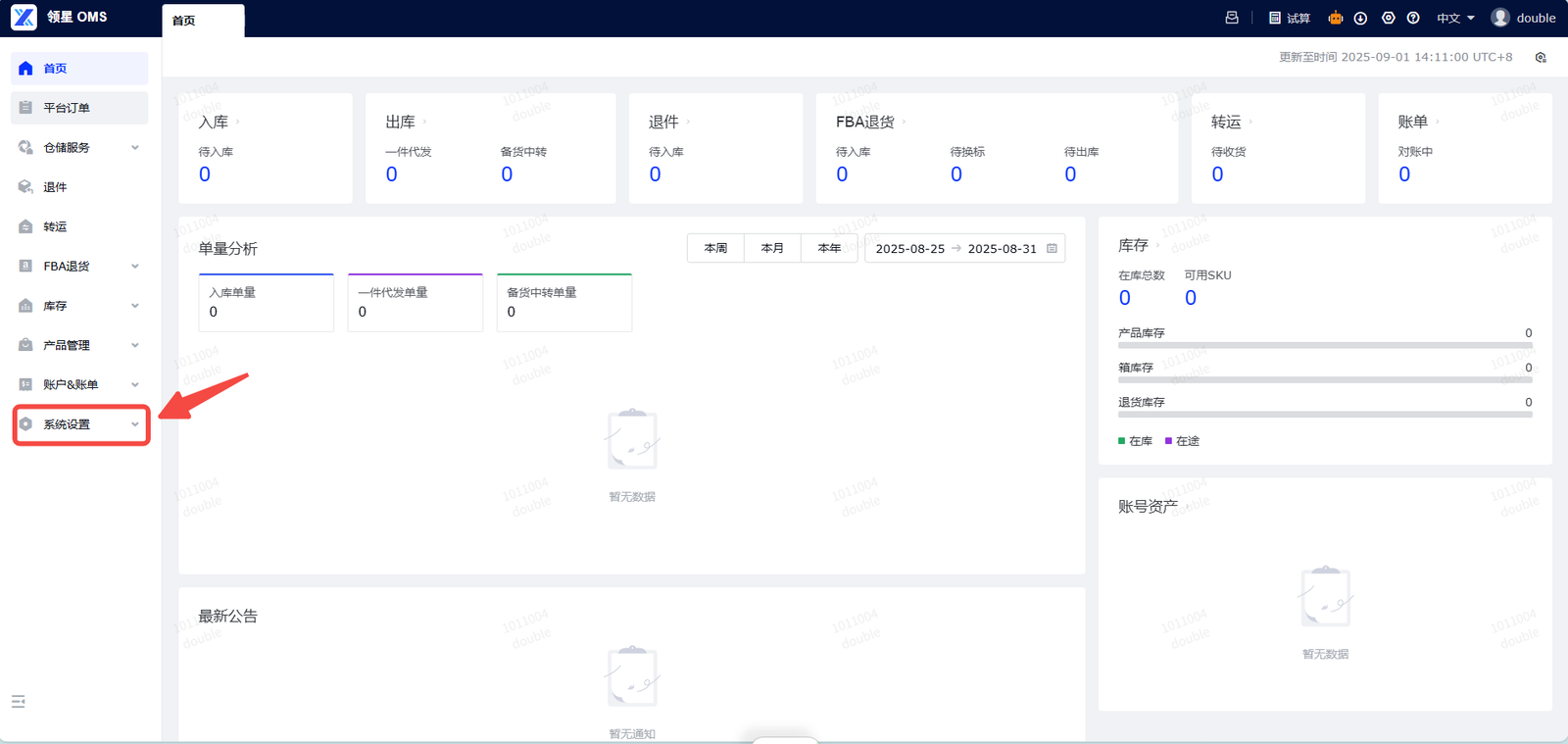
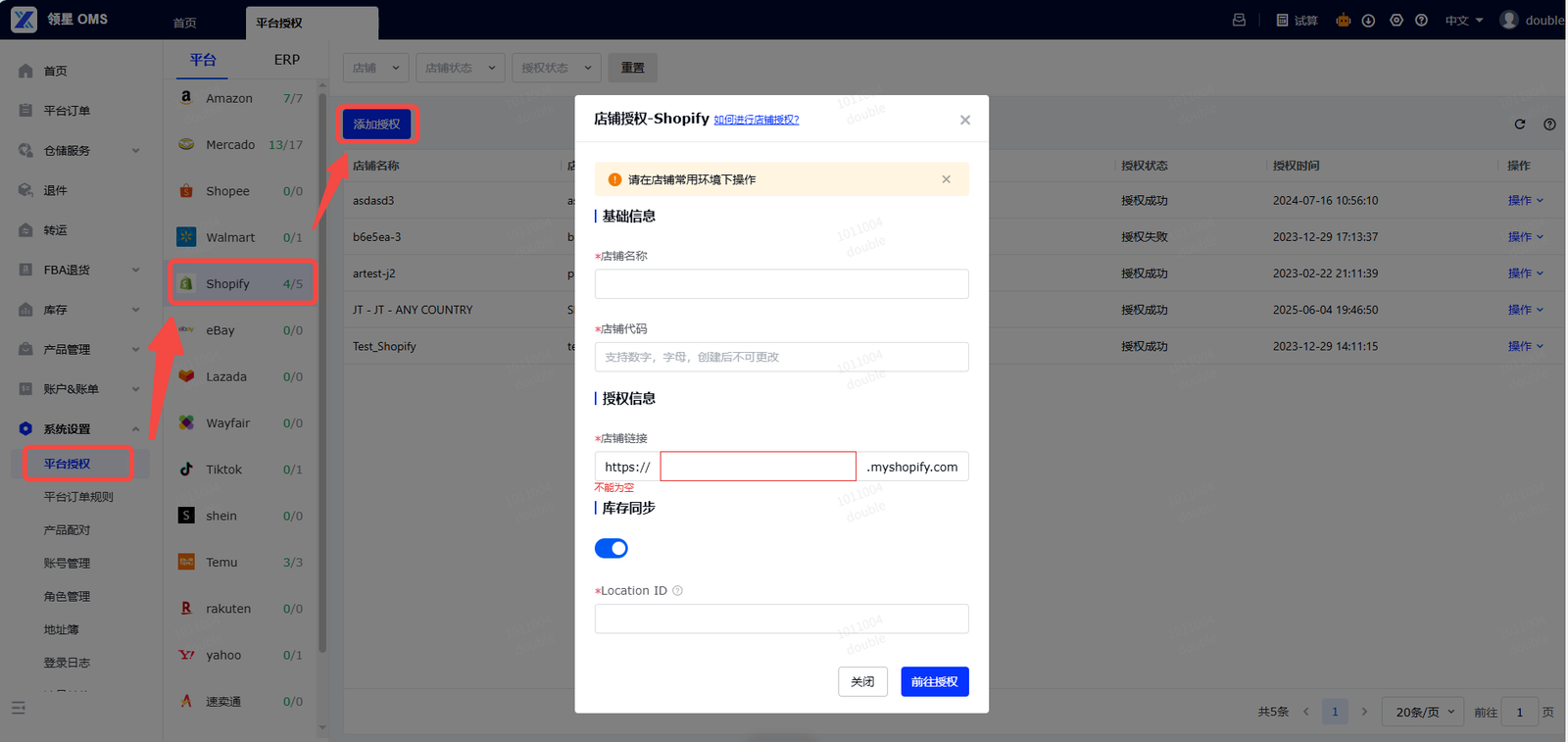
- Sign in to Lingxing OMS.
- Open System Settings.
- Select Platform Authorization.
- Choose Shopify.
- Click Add Authorization.
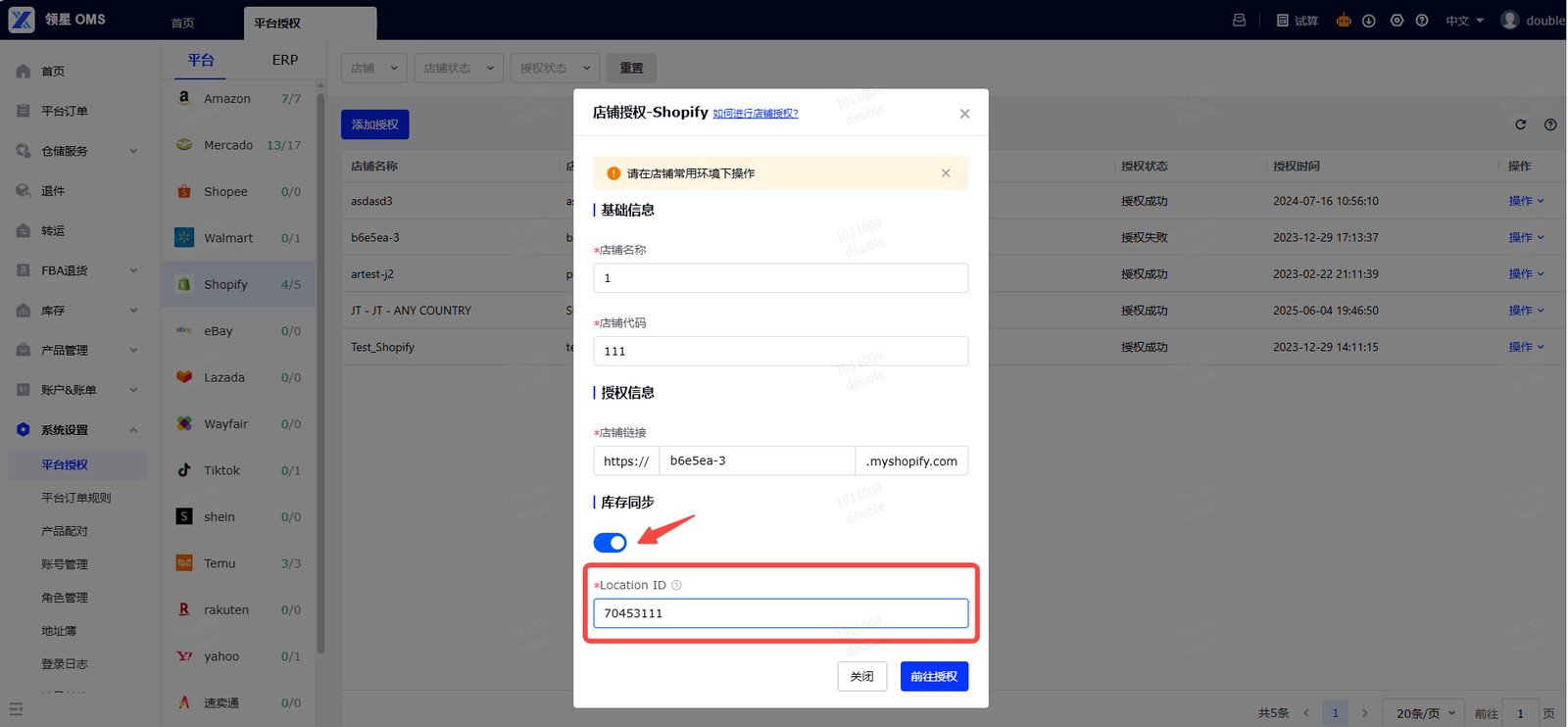
Step 3: Enter the Store Information
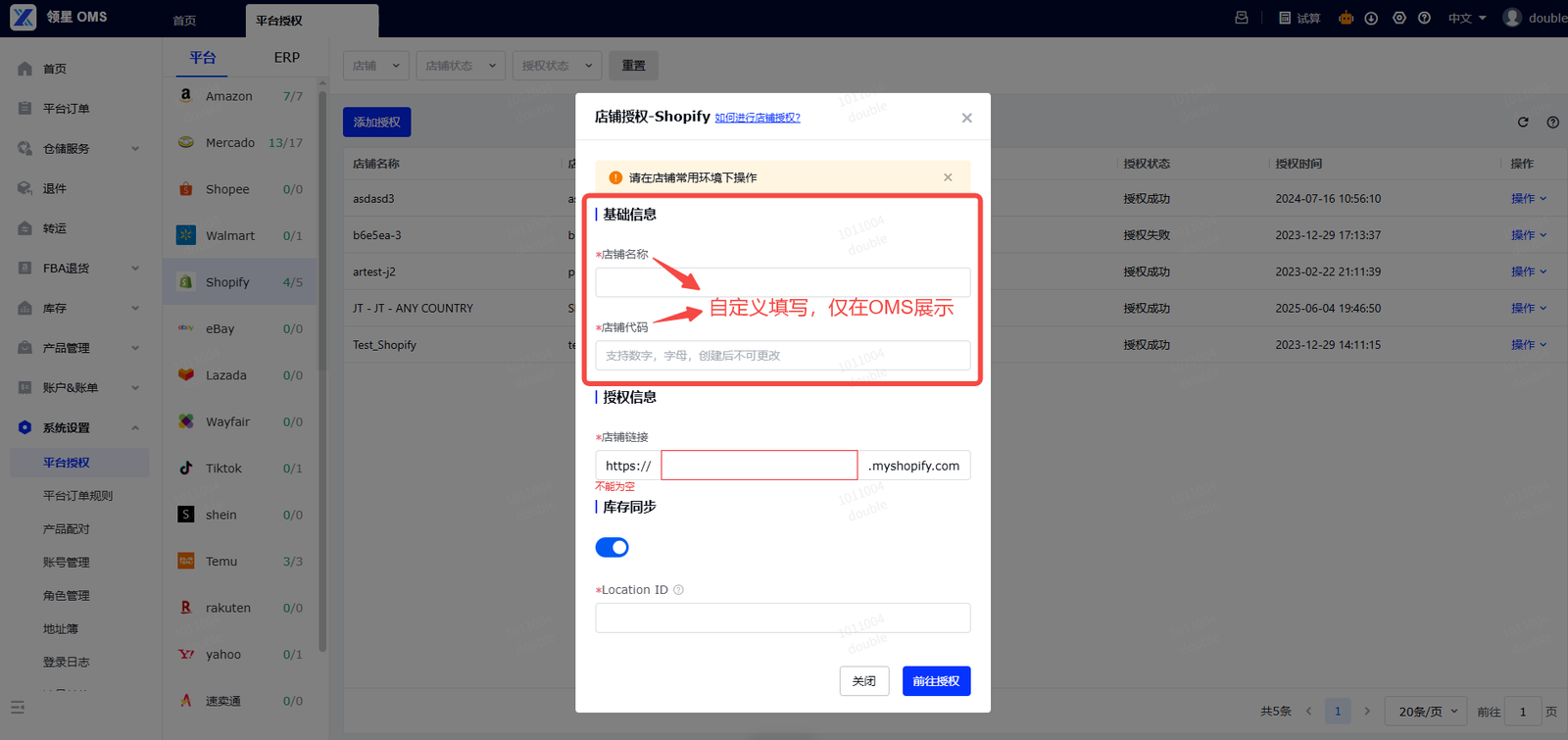
Complete the authorization form with the requested store details:
- Store Name: a recognizable name for the store in Lingxing OMS
- Store Code: a unique internal identifier for the store
- Store URL: the permanent
.myshopify.comdomain
Review the information carefully before continuing. An incorrect store URL can prevent authorization or connect the wrong Shopify store.
Step 4: Configure Inventory Synchronization
If you want Lingxing OMS to synchronize inventory with Shopify, enable inventory synchronization and enter the correct Shopify Location ID.
The Location ID identifies the Shopify inventory location that should receive stock updates. Confirm that the selected location is the one used for the connected fulfillment workflow.
Step 5: Authorize and Install the Lingxing WMS App
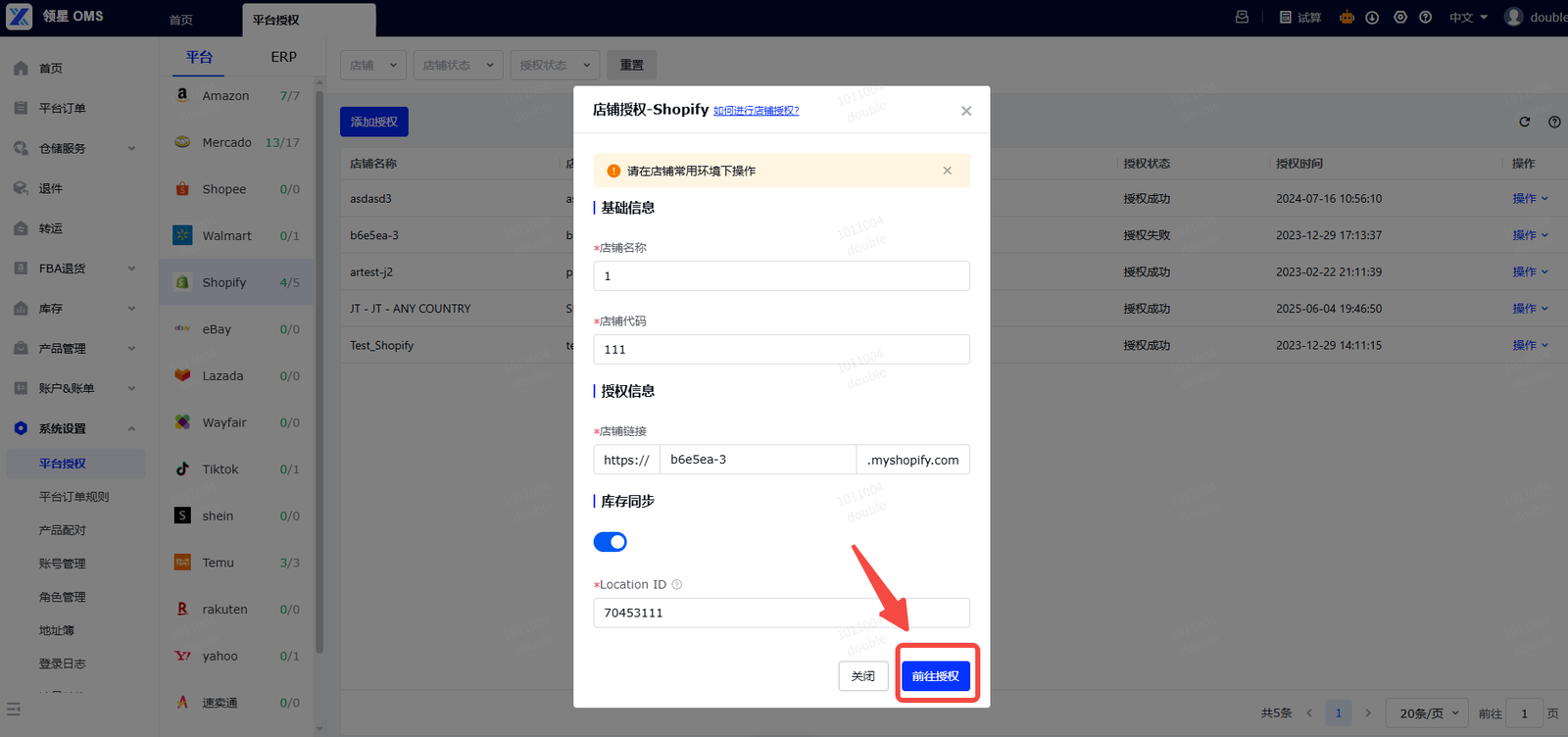
- Click Proceed to Authorization in Lingxing OMS.
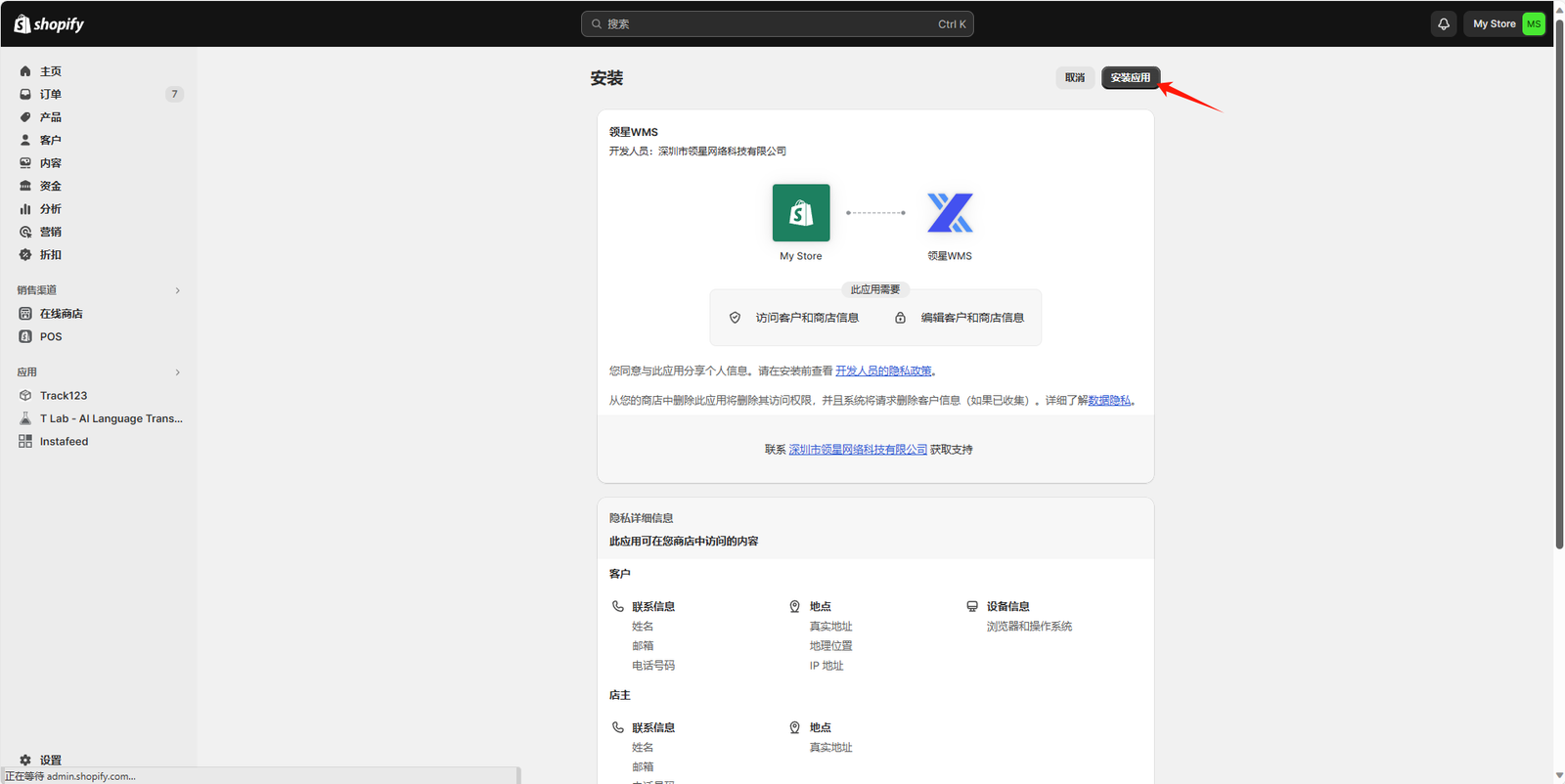
- Sign in to the intended Shopify store if Shopify requests authentication.
- Review the requested app permissions.
- Install or authorize the Lingxing WMS app.
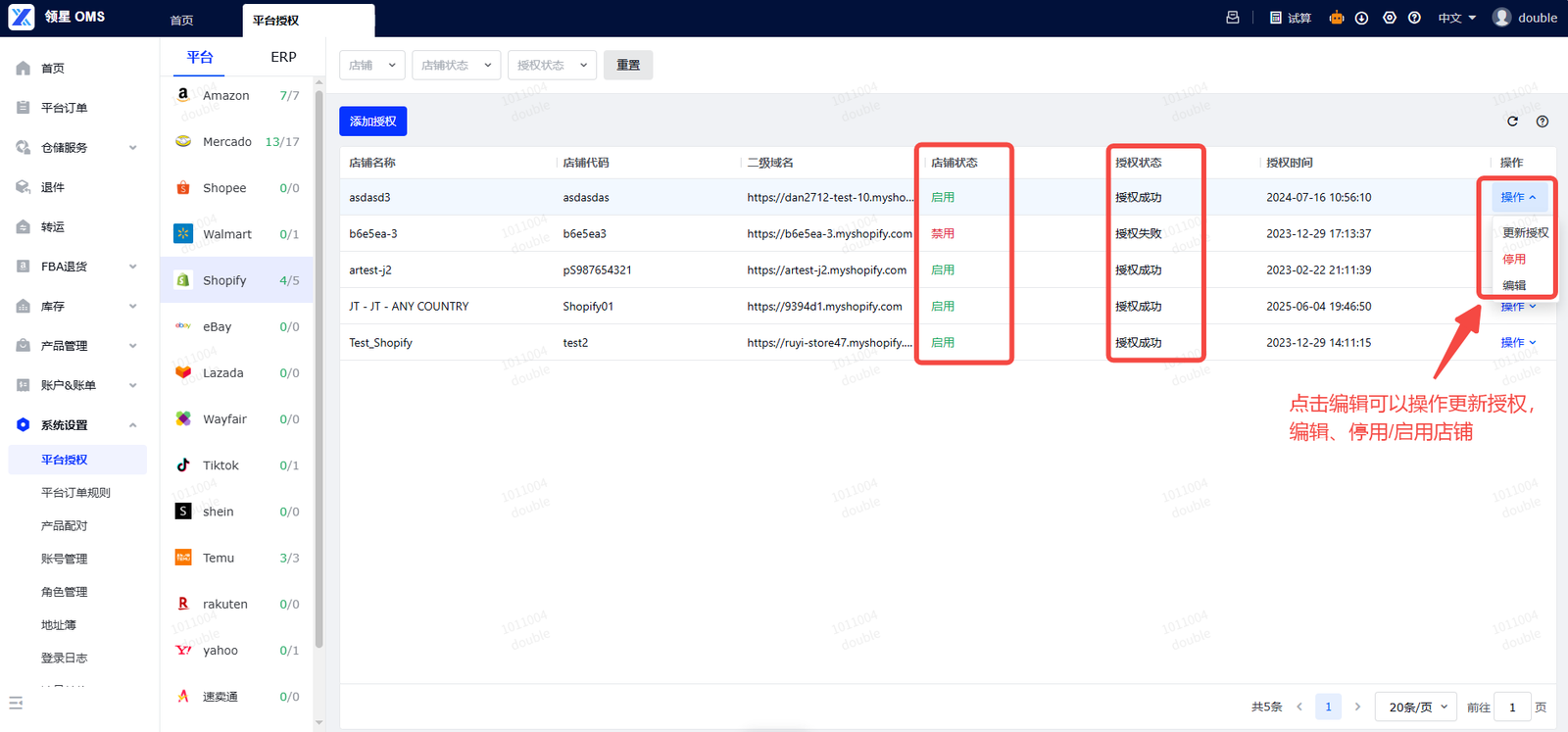
- Return to Lingxing OMS and confirm that the store shows as authorized.
Make sure the Shopify account used for this step has permission to install and authorize apps.
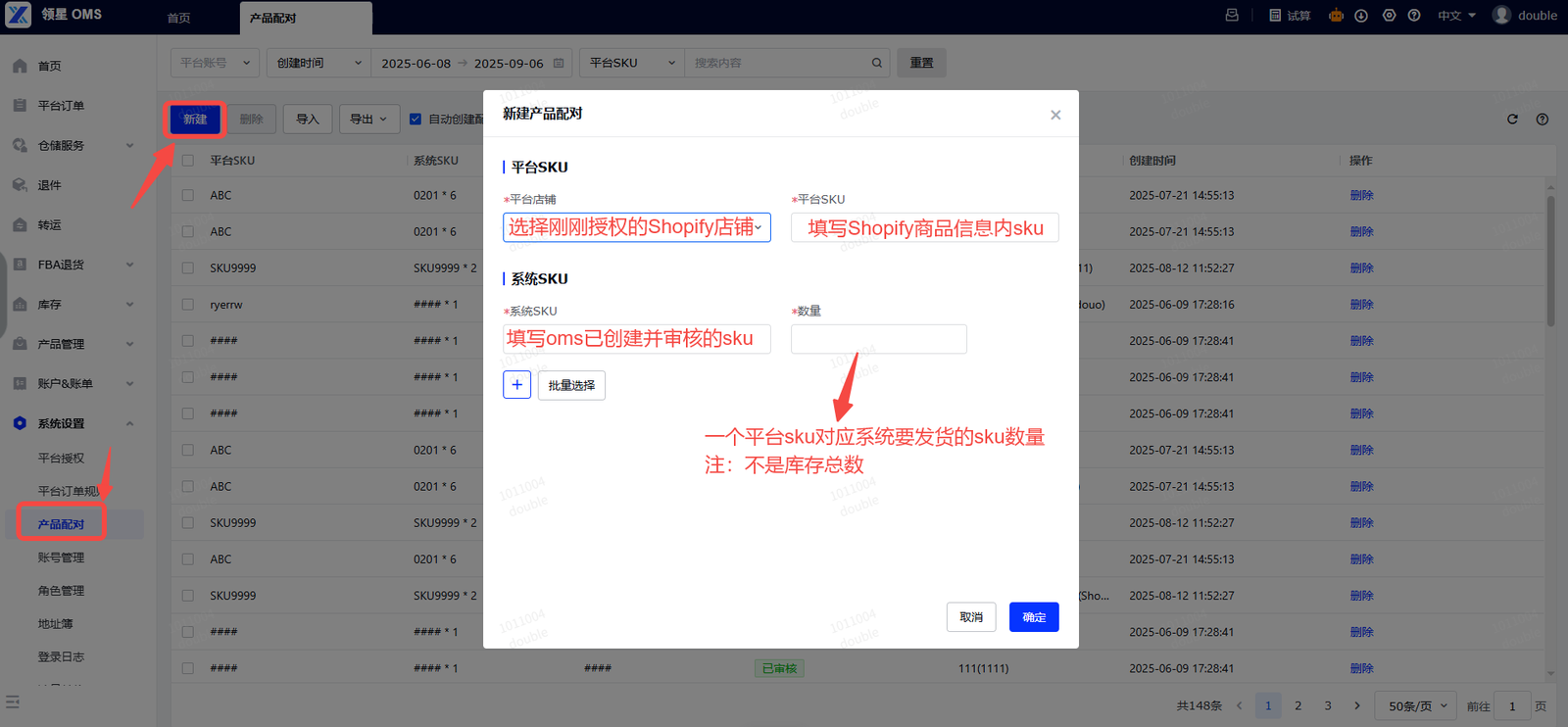
Step 6: Complete Product Pairing
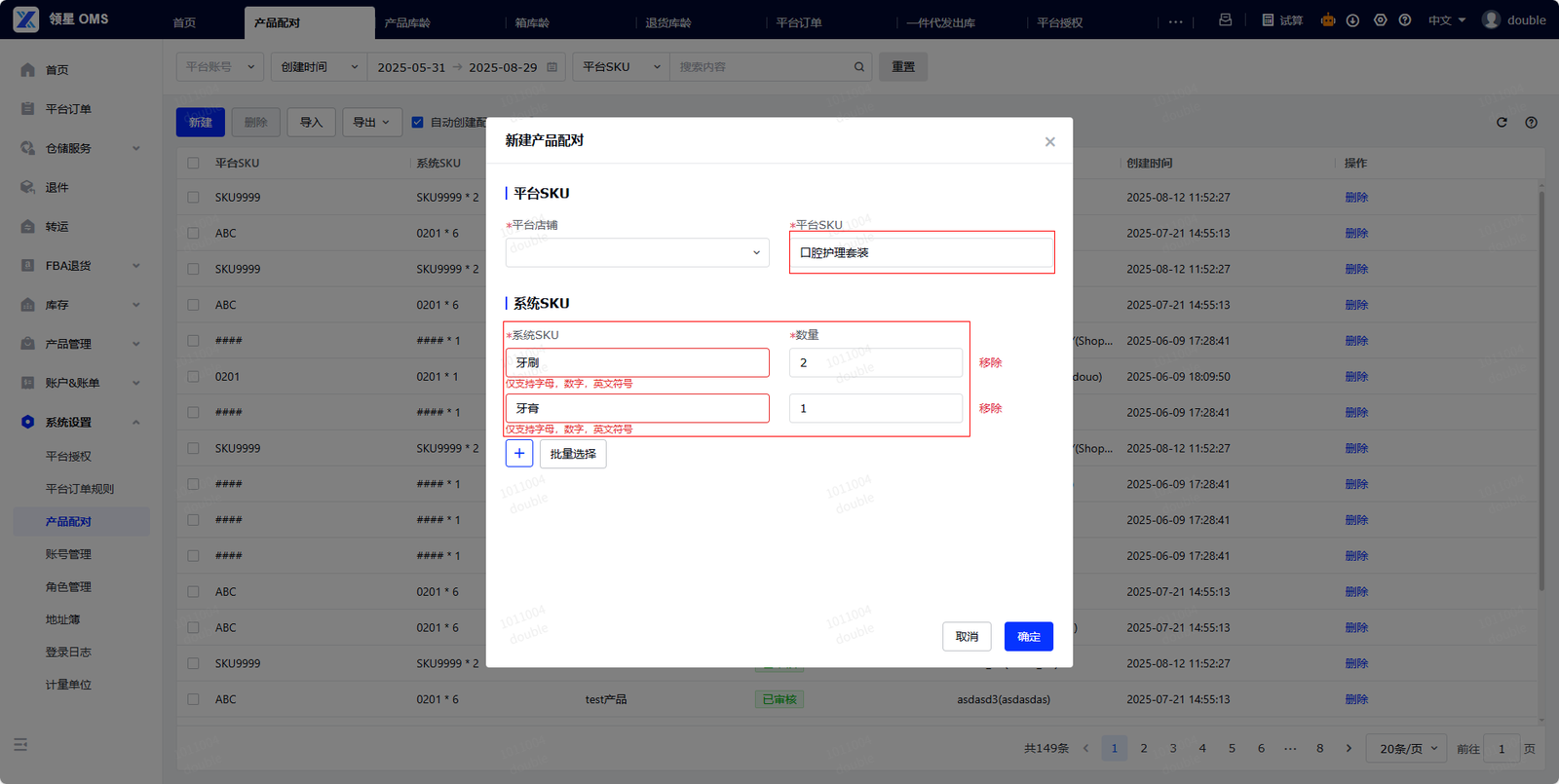
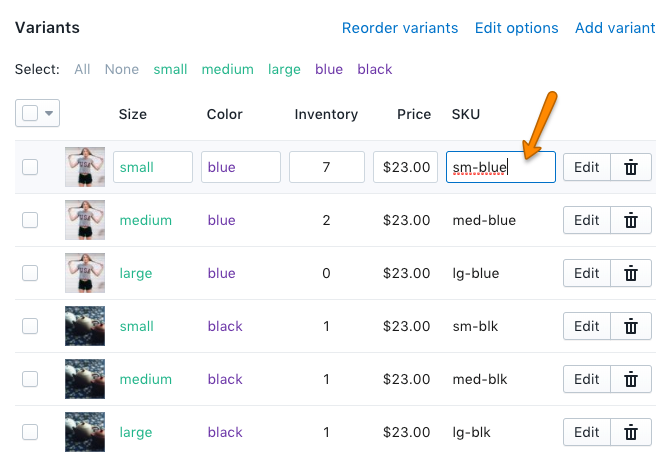
After the store is authorized, pair Shopify products or variants with the corresponding products in Lingxing OMS. This step establishes the relationship used to identify items in imported orders.
Verify the following for every pairing:
- The Shopify product or variant is paired with the correct Lingxing OMS product.
- The SKU mapping is accurate and unique.
- The pairing quantity reflects the correct conversion factor.
Pairing quantity is a conversion factor, not an inventory quantity. For example, if one Shopify item represents a bundle containing two units of the Lingxing OMS product, the pairing quantity should reflect that bundle relationship.
Step 7: Verify Order Synchronization
After authorization and product pairing, verify that Shopify orders appear correctly in Lingxing OMS.
- The initial order pull can include orders from the previous 3–5 days.
- After the initial pull, Lingxing OMS retrieves recent Shopify orders on an approximately 15-minute cycle for the previous 2 days.
- If an expected order is missing, use the manual synchronization option and check the store authorization and product pairing.
Post-Connection Checklist
- The correct Shopify store is marked as authorized.
- The permanent
.myshopify.comURL is recorded correctly. - The intended Shopify Location ID is configured.
- Every active variant has the correct SKU mapping.
- Product pairing and pairing quantities have been reviewed.
- A recent Shopify order is visible in Lingxing OMS.
- Inventory synchronization is updating the intended Shopify location.
Troubleshooting
The Shopify authorization page does not open
Confirm that the store URL uses the permanent .myshopify.com format and that the browser allows the authorization page to open. Also confirm that your Shopify account can install apps.
The store is authorized, but orders are missing
Check product pairing first. Then verify that the order falls within the synchronization window and use manual synchronization if needed.
Inventory is updating the wrong Shopify location
Review the Shopify Location ID entered during inventory-sync configuration. It must match the location used for the intended fulfillment workflow.
A Shopify variant cannot be matched
Confirm that the Shopify variant and the Lingxing OMS product use the intended SKU relationship. Recheck the product pairing and conversion quantity rather than changing inventory quantities.
Frequently Asked Questions
Should I use my custom Shopify domain?
No. Use the permanent .myshopify.com URL shown in Shopify’s domain settings.
Is product pairing required after authorization?
Yes. Authorization connects the store, while product pairing establishes the product and SKU relationship needed for order processing.
Does pairing quantity mean available inventory?
No. Pairing quantity is the conversion factor between a Shopify item and the corresponding Lingxing OMS product.
How often are Shopify orders synchronized?
The initial pull can include orders from the previous 3–5 days. Subsequent synchronization runs approximately every 15 minutes for orders from the previous 2 days. Manual synchronization is available when an order needs to be retrieved again.
Why did a customer receive a fulfillment email?
Customer notifications are controlled by the Shopify store’s notification and fulfillment settings. Review those settings if fulfillment messages should be changed or disabled.
What should I check when one product has multiple variants?
Verify the SKU and product pairing for each individual Shopify variant. Each variant must map to the intended Lingxing OMS product.
Need Help With Shopify Fulfillment?
DropshipVIP helps Shopify sellers connect their stores with a U.S. fulfillment workflow. Learn more about our Shopify fulfillment service, or apply for a DropshipVIP account if you need help with onboarding, inventory setup, or order fulfillment.
This tutorial is based on the official Lingxing OMS help documentation for Shopify store authorization. Interface labels may vary slightly as Lingxing updates its system.